This guide covers DocOps on the desktop (macOS and Windows). DocOps itself is in Vietnamese only, so every button is quoted exactly as it reads on screen, with an English translation in brackets. Anything that uses AI and is billed to your institution's key is marked at the step where it happens. Not installed yet? See the installation guide. The screenshots use sample data from a fictional university; the document numbers, relations and dates in them are for illustration only.
Getting started
DocOps has no personal accounts. Each computer is activated once with your institution's key; after that the app opens straight away.
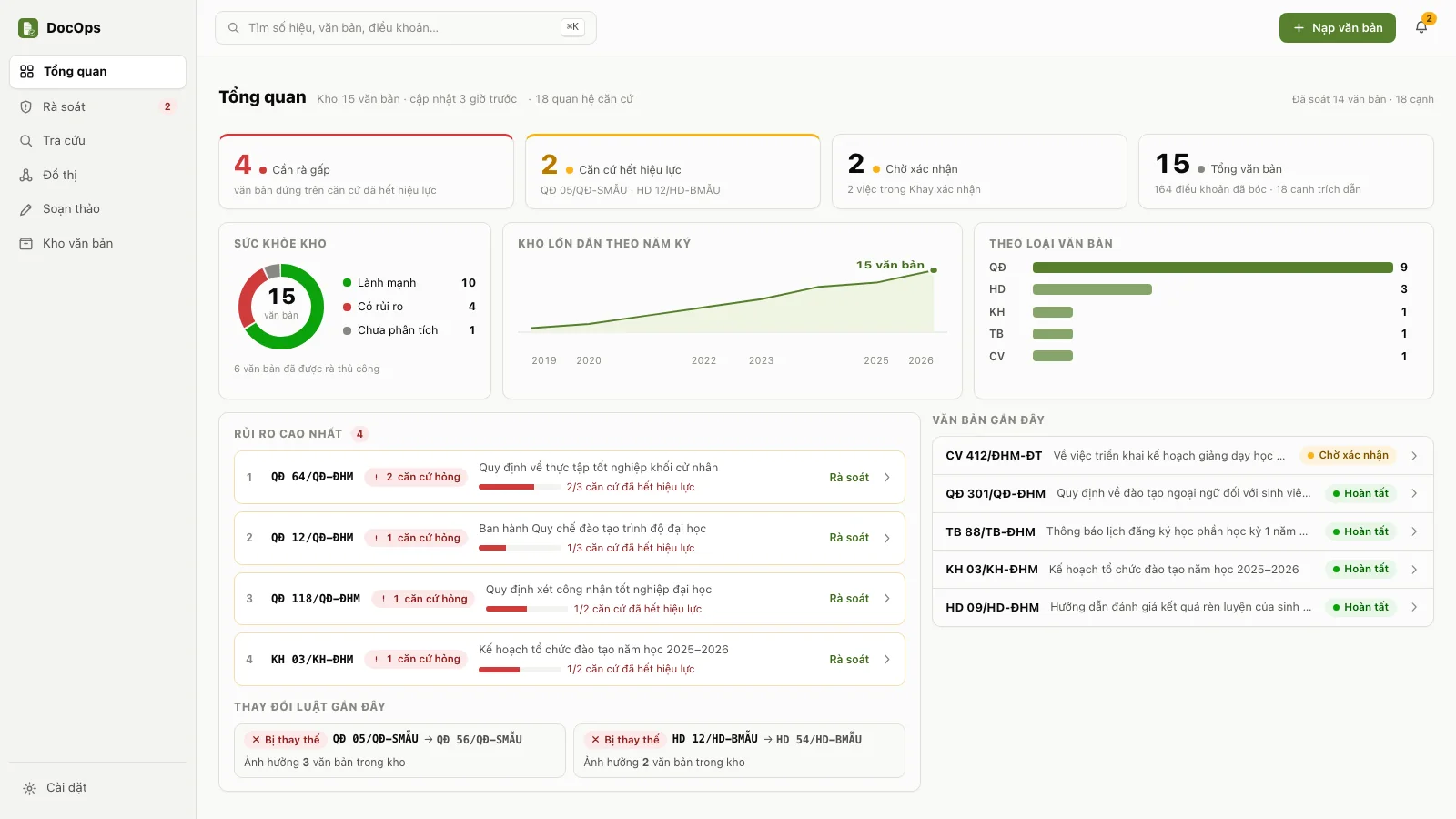
The Classic layout: screens in the left column, the Nạp văn bản button and the confirmation tray bell in the top bar. The app interface is in Vietnamese. Activate with a key
- Open DocOps. The first screen has a Key kích hoạt (Activation key) box.
- Enter the key your administrator issued, in the form
DOCOPS-XXXX-XXXX-XXXX, and click Kích hoạt (Activate). An internet connection is required. - No key yet? Click Gửi yêu cầu tới quản trị (Send a request to the administrator), enter your institution, a contact person and an email or phone number, choose the reason Chưa có key (đăng ký mới) (No key yet, new registration) and click Gửi yêu cầu (Send request). Note the request code shown and quote it to the administrator.
Each key works on up to 10 computers.
The quick tour on first use
After the first activation on a computer, DocOps runs an 8-step quick tour that takes about a minute. It introduces ingesting, the document library, search, asking the AI, review, drafting and settings in turn, pointing at the real button on screen. If you already know your way around, click Bỏ qua (Skip). Reopen it at any time in one of three ways:
- the Trợ giúp → Xem lại hướng dẫn nhanh (Help → Replay the quick tour) menu item;
- Cài đặt (Settings), card Trợ giúp & phản hồi (Help and feedback), button Xem lại hướng dẫn nhanh;
- typing
/huongdanin a chat box: the chat box of the Modern layout, or the Trò chuyện với AI (Chat with AI) panel in the right column of the Tra cứu (Search) screen in the Classic layout.
The Trợ giúp → Hướng dẫn sử dụng (Help → User guide) menu item opens this page in your browser.
Two layouts
- Cổ điển (Classic, the default): the left column lists Tổng quan (Overview), Rà soát (Review), Tra cứu (Search), Đồ thị (Graph), Soạn thảo (Drafting) and Kho văn bản (Document library), with Cài đặt (Settings) at the bottom. The top bar holds the quick search box, the Nạp văn bản (Ingest documents) button and the confirmation tray bell.
- Hiện đại (Modern): every feature sits behind one chat box. Type
/to open a feature,@to attach a document to a question, or plain text to ask the AI.
Switch at Cài đặt → Giao diện → Kiểu giao diện (Settings → Appearance → Layout); the change applies immediately.
In the chat box, slash commands accept any spelling: with or without Vietnamese diacritics, with hyphens or spaces, and in English.
/caidat,/cai-dat,/cài đặtand/settingsall open Settings. You can type search words straight after the command, for example/tracuu học phíor/kho tuyển sinh.Keyboard shortcuts⌘K (Windows: Ctrl K) opens quick search on any screen. ⌘O (Ctrl O) opens the file picker to ingest. The ? key opens the full shortcut list, and Esc closes the dialog that is open.
Ingesting documents
DocOps takes PDF files: PDFs that already carry a text layer (usually exported from Word) and scans (a photo of each page). For a scan, the AI reads the text page by page. The AI then extracts the document number, signing date, issuing body, signer and legal-basis relations. A document enters the library only after you confirm what the machine read.
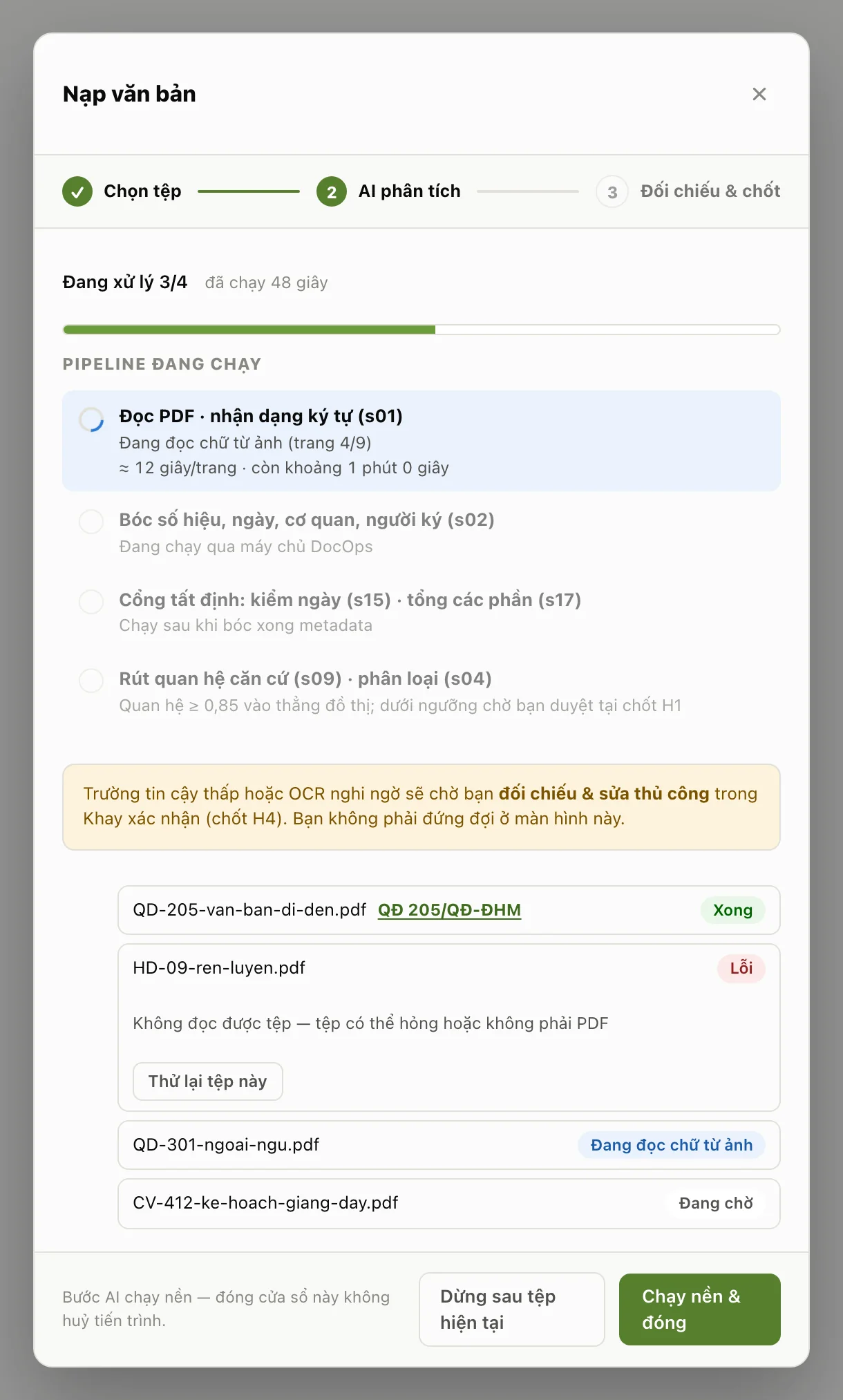
The Nạp văn bản window while DocOps reads a batch of files. The app interface is in Vietnamese. - Click Nạp văn bản (Ingest documents) in the top bar (or press ⌘O / Ctrl O, or use the Tệp → Nạp văn bản (File → Ingest documents) menu).
- Pick one or more PDF files. Hold ⌘ (Windows: Ctrl) or Shift while clicking to pick several at once.
- The Nạp văn bản window shows three steps: Chọn tệp (Choose files), AI phân tích (AI analysis), Đối chiếu & chốt (Compare and confirm). The percentage bar, the clock and the list show whether each file is waiting, being read, done or failed; a scan also shows which page is being read.
- No need to wait: click Chạy nền & đóng (Run in background and close). Ingesting carries on; the "Đang nạp x/y" (Ingesting x/y) pill in the top bar reopens the window.
- To stop a running batch, click Dừng sau tệp hiện tại (Stop after the current file): the file being read finishes, the remaining files are not ingested.
- When it is done, click Mở khay xác nhận (Open the confirmation tray) to confirm each document's details (see Review).
Billed AI useEvery file you ingest goes through AI steps that extract details and relations, billed to your institution's key. A scan adds the text-reading step, one AI call per page, so a thick scan costs more than a text PDF with the same number of pages.
When ingesting fails
- A failed file shows the Lỗi (Error) label with the reason. Click Thử lại tệp này (Retry this file) to ingest that file again on its own.
- When the server turns requests away for a while (too many at once, or the institution's allowance is used up), the batch pauses and shows when it will retry. Click Tiếp tục ngay (Continue now) to try straight away, or Dừng hẳn (Stop for good).
- If some files failed while being read or analysed, DocOps asks once: Gửi báo cáo lỗi cho quản trị? (Send an error report to the administrator?) The report contains no file names, no document text and no paths on your computer; click Thông tin sẽ gửi (What will be sent) to preview it. Click Gửi báo cáo (Send report) and note the code shown. Click Bỏ qua (Skip) and that batch's report is not sent and you are not asked again.
- For any other problem: Trợ giúp → Gửi phản hồi (Help → Send feedback).
Closing the Nạp văn bản window does not cancel ingesting. A field the machine was unsure of, or text read from an image that looks doubtful, does not break the batch: that document waits for you to compare it in the confirmation tray.
Document library
The document library lists every ingested document: number, subject, type, year and state. Click the number or an empty part of the row to open the detail panel on the right; click the subject to see a long subject in full.
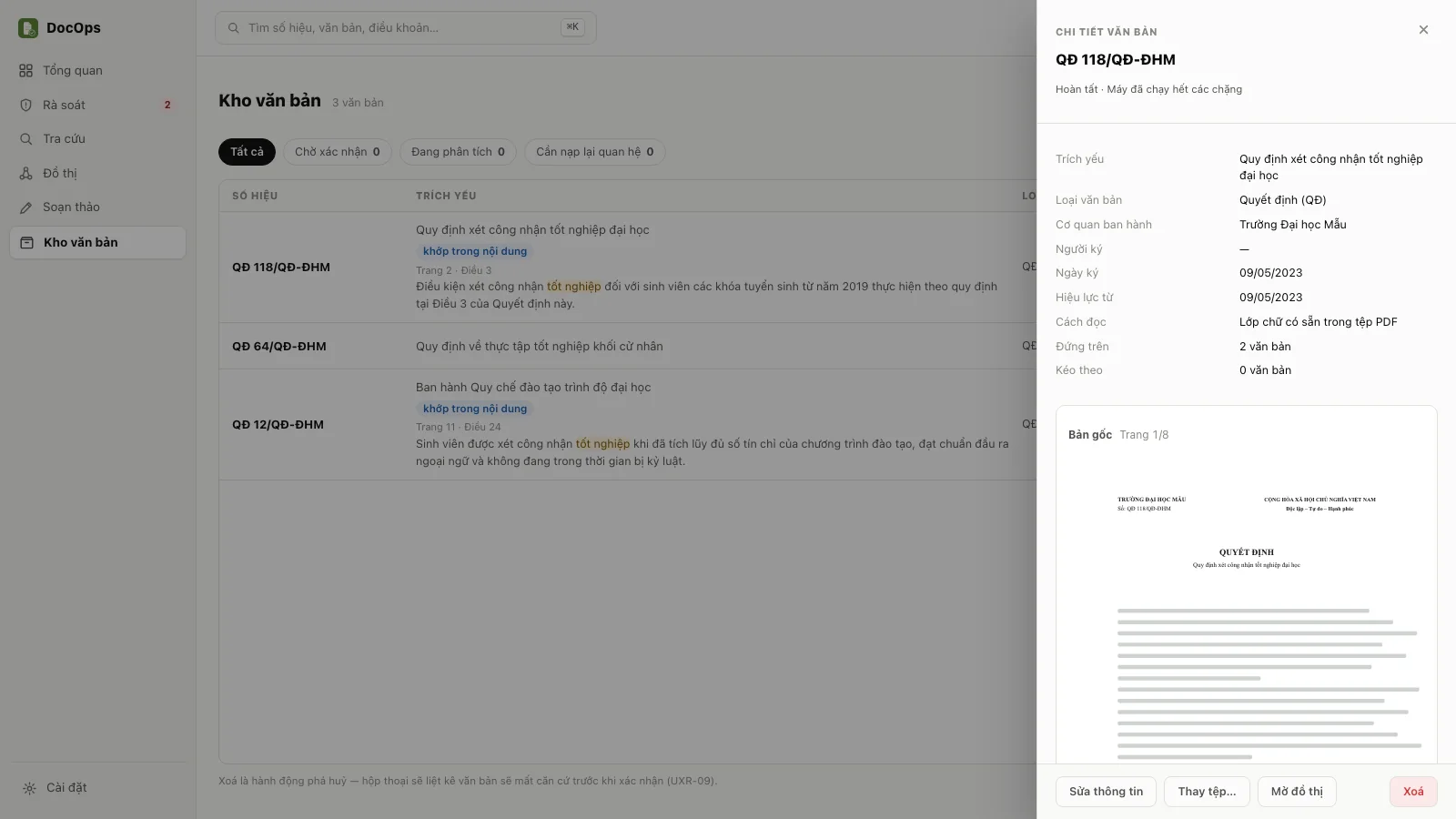
The document library and the detail panel of one document. The app interface is in Vietnamese. Filtering
- Click a state button: Tất cả (All), Chờ xác nhận (Awaiting confirmation), Đang phân tích (Analysing) or Cần nạp lại quan hệ (Relations need reloading).
- Type into the Lọc trong kho… (Filter the library) box. It searches the number, the subject and the document text itself. A row that matched in the body says "khớp trong nội dung" (matched in the content) and shows the passage holding the words you typed.
- Click Bỏ bộ lọc (Clear filter) to see the whole library again.
Reading the original
In the detail panel, click the page 1 image under Bản gốc (Original). The reader scrolls continuously through the pages; the ⇤ Đầu (First) and Cuối ⇥ (Last) buttons, or the Home and End keys, jump to the first and last page, the ← → keys turn pages, and the − and + buttons zoom the image.
Editing details
- Open the document's detail panel and click Sửa thông tin (Edit details).
- Edit the number, document type, subject, issuing body, signer, signing date or effective date, then click Lưu (Save).
- If you change the number of a document that has relations, DocOps asks "Đổi số hiệu sẽ nối lại N quan hệ sang số mới." (Changing the number will reconnect N relations to the new number.) Click Đổi (Change) to agree or Thôi (Cancel) to keep the old number.
The button appears only when the document is Hoàn tất (Complete) or Trả lại nguồn (Returned to source), is not waiting at a confirmation step and is not being analysed.
Replacing the file
Use this when the ingested file was wrong: missing pages, the wrong version, a blurry scan.
- Open the document's detail panel, click Thay tệp… (Replace file) and pick the correct PDF.
- The confirmation box explains that the old document will be deleted and replaced by a new one read from the file you picked. The new document goes through the details confirmation step again.
- Tick "Tôi hiểu văn bản cũ sẽ bị xoá và không hoàn tác được" (I understand the old document will be deleted and this cannot be undone), then click Thay tệp. If you do not want to wait, click Chạy nền (Run in background): the replacement keeps running and its result appears in the confirmation tray.
If a document you just ingested has the same number as one already in the library, it stops, and its detail panel says "Trùng số hiệu với văn bản «…» đã có trong kho" (Same number as «…», already in the library) with two buttons: Thay văn bản cũ bằng bản này (Replace the old document with this one; the new copy is already read, so its text is not read again), or Xoá bản vừa nạp (Delete the copy just ingested).
Cannot be undoneReplacing a file deletes the old document for good: its page images, its text and the relations it points out to. Relations that other documents cite to this number are kept. Every Thay tệp… re-runs the AI analysis on the new document, so it is billed like a new ingest; if the new file is a scan, the text reading is billed on top.
Documents whose text was not read, or that stopped halfway
- A scan whose text the machine has not read has a Đọc lại bằng OCR (Re-read with OCR) button: DocOps reads the text from the stored page images and carries on with the analysis. This is billed like reading a new scan.
- A document marked Dừng giữa chừng (Stopped halfway) or Chưa xử lý được (Not processed) has a Chạy lại xử lý (Run processing again) button, also billed AI use.
- A document whose legal-basis relations the machine could not extract has a Nạp lại quan hệ (Reload relations) button. Click the Cần nạp lại quan hệ (Relations need reloading) state button to tick several documents at once, then click Nạp lại quan hệ của N văn bản (Reload relations of N documents). The confirmation box says how many documents will run; Nạp lại quan hệ is billed AI use, and a document without text first has its text read from the page images, then returns to the details confirmation step. Click Bắt đầu (Start).
- Only one document can be re-read at a time; the other buttons are locked until the running one finishes.
Deleting a document
- Click the bin icon at the end of the row, or Xoá (Delete) in the detail panel.
- The dialog lists the documents that would lose a legal basis if this one is deleted.
- Tick "Tôi hiểu thao tác này không thể hoàn tác" (I understand this cannot be undone), then click Xoá vĩnh viễn (Delete permanently).
DocOps has no recycle bin. Back up before cleaning up the library.
Search
Search looks through the number, the subject and the full text of every ingested document, including text the machine read from scans. Searching runs on your computer and is free.
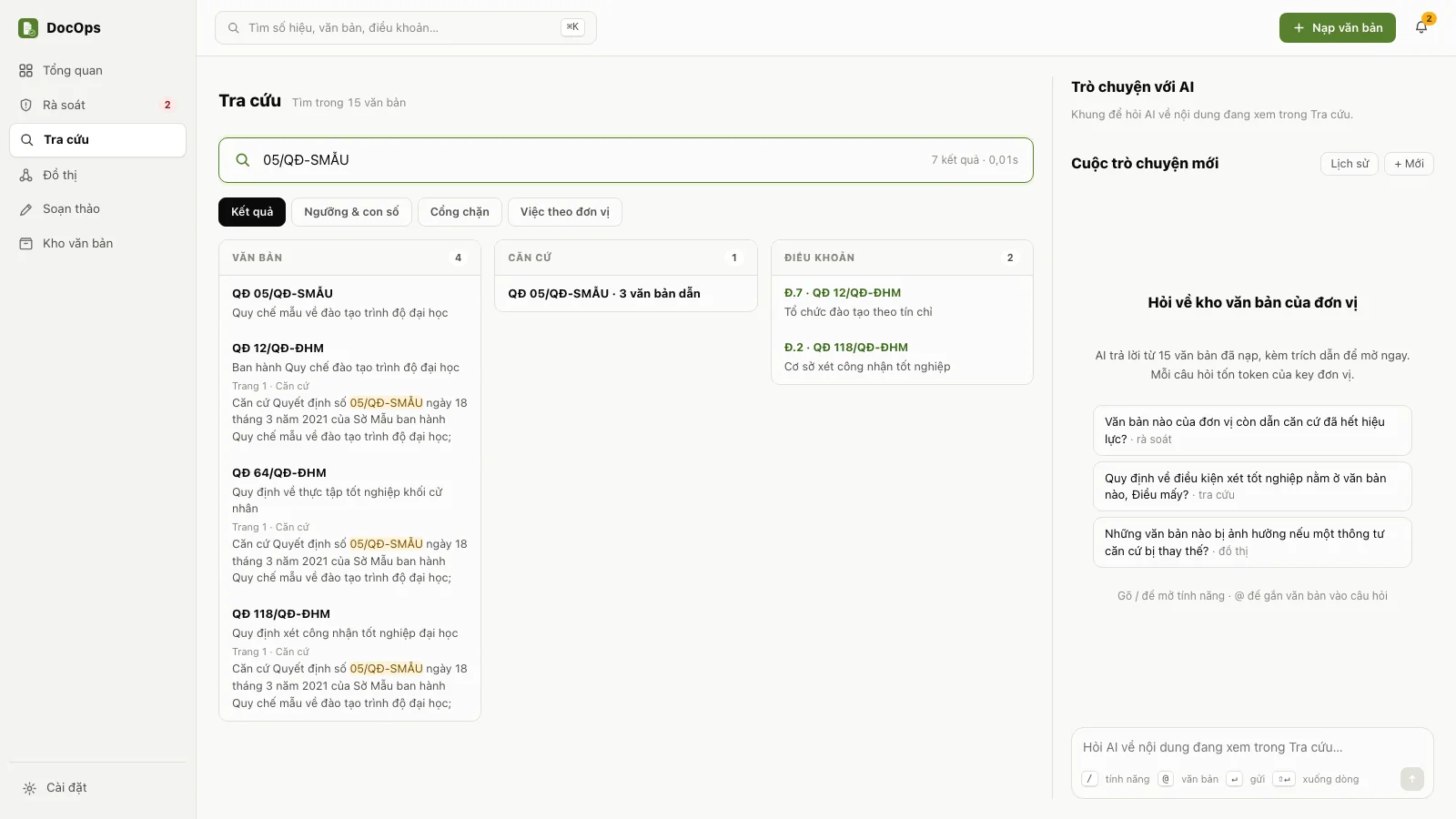
Search results: each document comes with the passage and page that hold the words typed. The app interface is in Vietnamese. - Open Tra cứu (Search) and type into the search box. Diacritics are optional: typing "hoc phi" still finds documents that say "học phí".
- Administrative abbreviations work both ways: "QĐ tuyển sinh" finds documents that say "quyết định tuyển sinh", and the other way round. The same goes for CV, TB, KH, NĐ, TT, UBND and other common abbreviations.
- Results come in three groups: Văn bản (Documents), Căn cứ (Legal bases) and Điều khoản (Articles). A document that matched in its text shows a passage with the matched words highlighted, and the page number.
- Click a result to open the document. When the result is a passage in the body, the original reader opens on the page holding that passage.
Quick search, ⌘K (Ctrl K), uses the same search and opens on any screen.
When no document matches every word, Search says "Không có văn bản khớp đủ mọi từ" (No document matches every word) and shows the partial matches. Right after a DocOps update, the line "Đang lập chỉ mục nội dung…" (Indexing content…) means the text of older documents is still being prepared for search; wait for it to finish and search again.
Re-reading the text of old PDFs (free)
Some text PDFs ingested with an older DocOps version have their letters split apart (for example "B Ộ GIÁO D Ụ C"), so searching their content can miss. DocOps re-reads these from the original files on start-up. When the original file sits in a folder macOS protects (Desktop, Documents, Downloads, iCloud Drive, an external drive), you have to press a button:
- In Search, the line "N văn bản PDF cũ có thể đọc lại chữ để tìm chính xác hơn" (N old PDFs can have their text re-read for more accurate search) appears with a Đọc lại chữ (miễn phí) (Re-read text, free) button. Click it.
- macOS may ask whether DocOps can read that folder. Allow it so DocOps can read the original files.
- DocOps reports how many documents were re-read. An original file that was deleted or changed cannot be re-read.
Đọc lại chữ (miễn phí) reads the text layer already in the file, calls no AI and is free.
Ask the AI
Ask in plain words about your institution's document library. The AI answers only from the documents you ingested, and cites the exact document, page or article so you can open it and check.
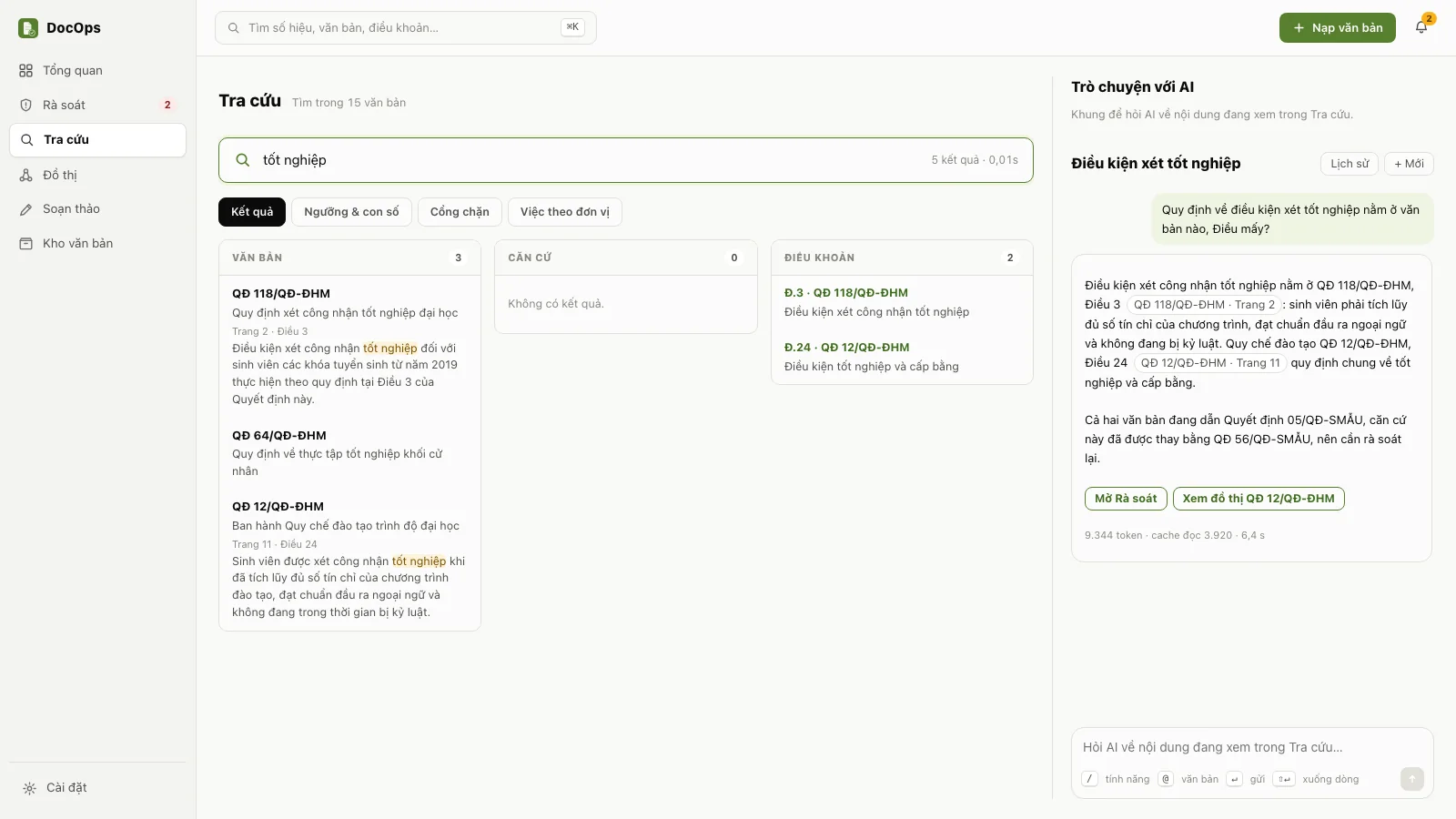
An AI answer with its citations: click one to open the exact document and page. The app interface is in Vietnamese. - Classic layout: open Tra cứu (Search) and use the Trò chuyện với AI (Chat with AI) panel in the right column. Modern layout: type straight into the chat box.
- Type your question and press Enter (⇧ Enter for a new line). To ask about one particular document, type
@and pick the document to attach it to the question. - Read the answer. Each citation is a button with the document number and page; click it to open that document at that page.
- Ask follow-up questions in the same conversation: the AI reads the earlier questions too. Click + Mới (New) to start another conversation, Lịch sử (History) to reopen an old one.
The AI finds relevant documents using the very words of your question, so use the words your institution's documents use: the name of the task, the document number, the name of the body.
Billed AI useEvery question is billed to your institution's key; under each answer you see the token count and the time taken. Clicking Gửi lại (Send again) is also a new billed turn.
When the library lacks a document the answer needs, the answer says "Chưa tìm thấy trong kho: …" (Not found in the library yet: …) instead of guessing. When the AI mentions a document that is not in the library, the app says so: "AI nhắc tới văn bản không có trong kho" (The AI mentioned a document not in the library). The AI can be wrong: always open the original document to check before you use an answer.
Review
Review covers two jobs: confirming what the machine read, in the Khay xác nhận (Confirmation tray), and handling legal-basis validity warnings on the Rà soát (Review) screen.
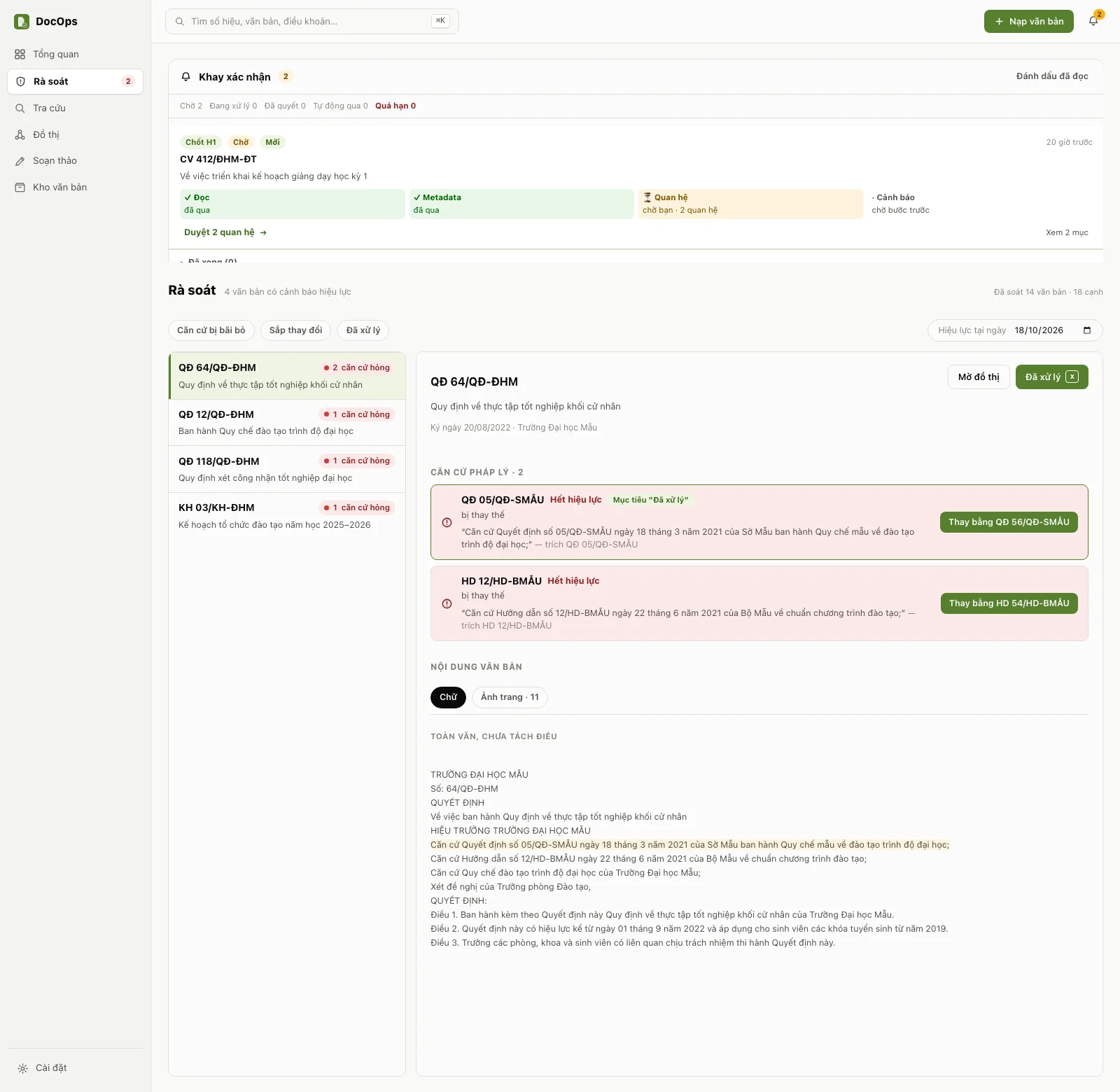
The Review screen: the flagged legal bases, the original sentence and the document's content in one place. The app interface is in Vietnamese. The confirmation tray
The bell in the top bar counts the work waiting for you. Each card in the tray is one document and names the confirmation step it is at:
- H2, button Duyệt vào kho (Approve into the library): confirm the details the machine extracted (number, signing date, issuing body, subject…). Every newly ingested document goes through this step.
- H4, button Mở màn đối chiếu (Open the comparison screen): fields the machine was unsure of, or text read from an image that looks doubtful; compare with the original page image and choose the right value.
- H1, button Duyệt N quan hệ (Approve N relations): legal-basis relations the machine extracted but is not sure enough about, waiting for you to accept or reject.
Confirming a document at step H2:
- Click the bell, choose the document and click Duyệt vào kho.
- The confirmation screen shows every field the machine read with its confidence, next to the page image. In the page image frame, the ⇤ Đầu (First) and Cuối ⇥ (Last) buttons jump to the first and last page; click inside the frame and use Home, End, ← →, or type a page number in the page box.
- If everything is right, click Chốt (Confirm).
- If something needs fixing, edit it in its box, then click Sửa metadata rồi chốt (Edit metadata, then confirm). The Xác nhận sửa thông tin rồi chốt (Confirm the edits, then confirm) box lists each field, with a "Máy đọc" (Machine read) column next to a "Bạn sửa thành" (You changed it to) column. Click Chốt với N thay đổi (Confirm with N changes), or Quay lại sửa (Go back and edit).
- A document that cannot be used (missing pages, an unreadable number): write the reason in the reason box and click Trả lại nguồn (Return to source).
- Not ready to decide? Click Để sau (Later); the document stays in the tray.
Confirming at H2 confirms the details; the document enters the library once the remaining analysis steps have run. In the tray, the ↑ ↓ keys move between items and Enter opens the selected one. Decided work collects in the Đã xong (Done) group at the end of the tray; click Ẩn (Hide) on a card or Ẩn tất cả (Hide all) to tidy the tray, and Hiện mục đã ẩn (Show hidden items) then Hiện lại (Show again) to bring a card back.
The C key (quick confirm), and the Chọn tất cả mục H2 (Select all H2 items) tick box with its Chốt N mục (Confirm N items) button, confirm without opening the confirmation screen. Use them only when you have already looked at those documents' details.
Legal-basis validity warnings
The Rà soát (Review) screen lists your institution's documents that cite a legal basis with a validity problem, as of the date in the Hiệu lực tại ngày (Valid as of) box (today by default).
- Filter with the Căn cứ bị bãi bỏ (Basis repealed), Sắp thay đổi (Changing soon) and Đã xử lý (Handled) buttons.
- Choose a document. The right side shows the flagged legal bases, the original sentence that cites each one, and the document's content in two tabs, Chữ (Text) and Ảnh trang (Page images), with ⇤ Đầu and Cuối ⇥ buttons and the Home and End keys.
- Click the original sentence to jump to that very sentence in the document's content. A legal basis that has expired and has a replacement offers a Thay bằng … (Replace with …) button: it opens the document library, filtered by the replacement's number.
- When you have dealt with it, click Đã xử lý (Handled), or press X. DocOps moves on to the next warning.
The top of the screen always reads "Đã soát N văn bản · M cạnh" (Checked N documents · M edges). An empty list with 0 edges means the machine has no relations to check yet, not that the library is clean.
Relationship graph
The graph draws the legal-basis relations between documents: which document stands on which legal basis, and which documents are pulled along when a legal basis changes. A card's colour shows its validity on the chosen date: Còn hiệu lực (In force), Hết hiệu lực (Expired), Sắp thay đổi (Changing soon).
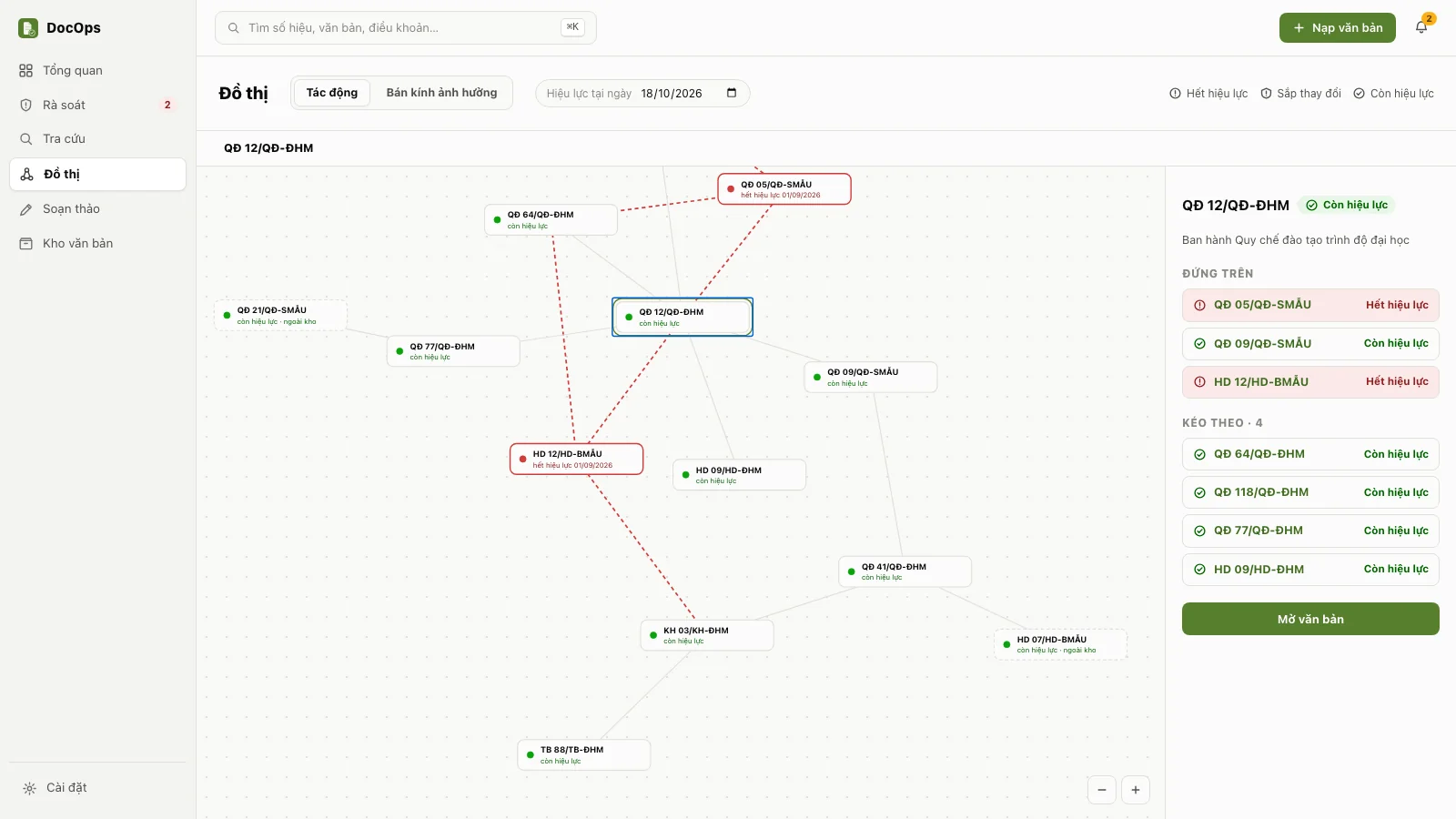
Impact mode: select a card to see what it stands on and what it pulls along. The app interface is in Vietnamese. Viewing impact
- Open Đồ thị (Graph) in Tác động (Impact) mode. Scroll to zoom in and out, drag the background to move around, drag a card to rearrange.
- Click a card. The right column shows Đứng trên (Stands on: its legal bases) and Kéo theo (Pulls along: the documents that rely on it). Click Mở văn bản (Open document) to read it.
- Change the Hiệu lực tại ngày (Valid as of) box to see validity at another point in time.
- In the chat box, type
/dothifollowed by a document number, or by a few words of its subject. If one document matches, its graph opens straight away; if several match, DocOps lets you choose; if none match, DocOps says so.
When you select a card that is a legal basis cited but not yet ingested, the right column says "Không có trong kho — căn cứ được viện dẫn" (Not in the library: a cited legal basis).
Impact radius
This answers the question: if an article of this document is amended, what in the library has to be checked again?
- In Impact mode, select a document.
- Click Bán kính ảnh hưởng (Impact radius). Each article that is cited becomes a bubble reading "Đ.23" (Art. 23) and its citation count. The bigger the bubble, the more places in the library rely on that article.
- The right column gives the number of articles and citations checked across the whole library, so you can tell "0 because nothing relies on it" from "0 because there was nothing to check".
Impact radius runs on your computer, calls no AI and is free. It only counts the business rows the machine extracted at ingest (key figures, hard limits, thresholds…), so the figure is a minimum. A document whose articles have not been extracted has no bubbles.
Drafting
Drafting writes administrative documents in the 29 types of Decree 30/2020/NĐ-CP. The AI writes a first version from your main points, you edit it, then you export Word or PDF in the correct format.
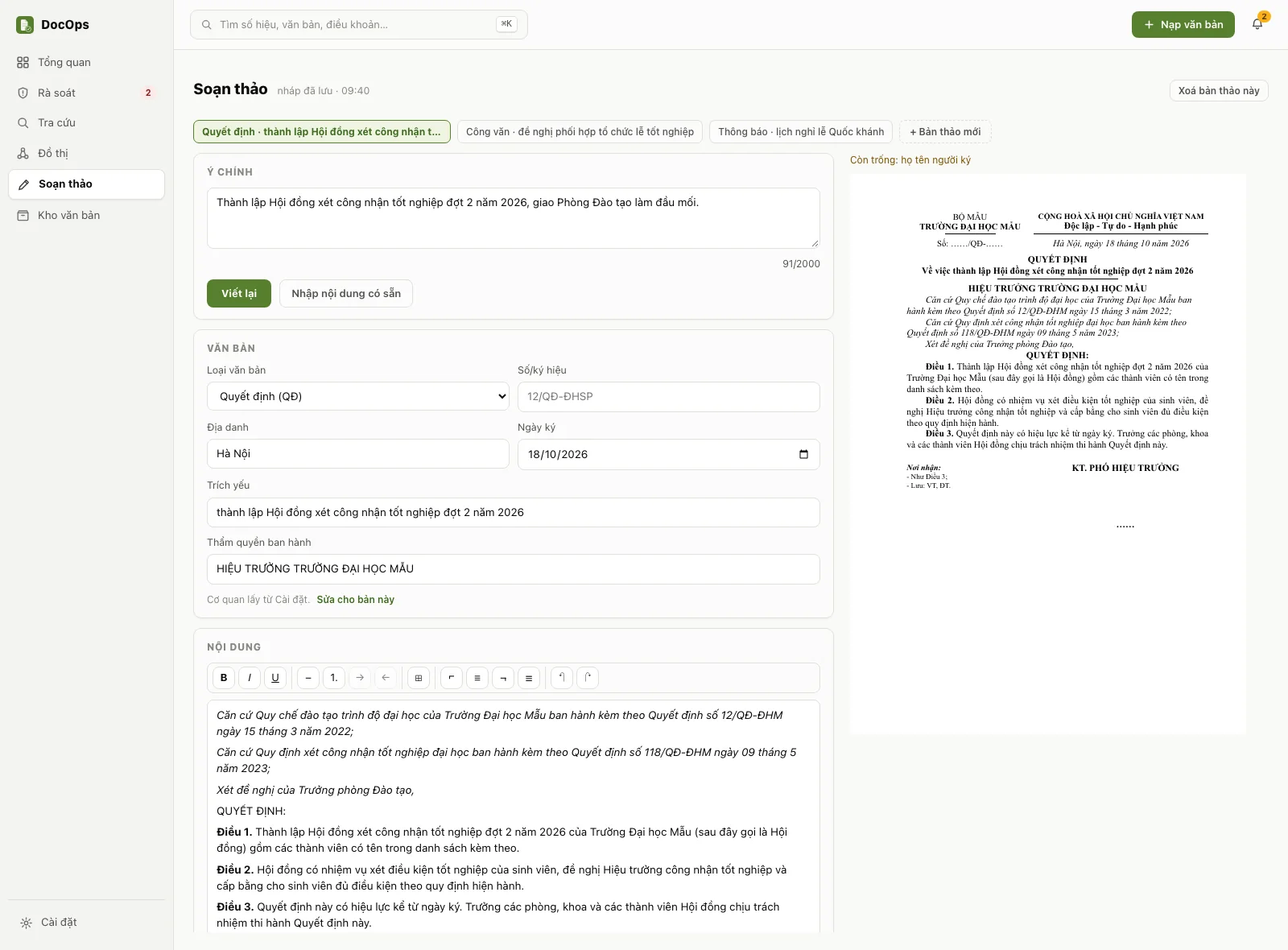
Drafting: fill in on the left, preview the A4 page on the right. The app interface is in Vietnamese. Writing a new draft
- Open Soạn thảo (Drafting). The screen opens on a blank draft.
- Choose the Loại văn bản (Document type), then type the Ý chính (Main points): what is being issued, to whom it applies, and why.
- Click Viết (Write). The AI writes a first version in about 10 to 20 seconds and picks legal bases that are in force from your library. Legal bases that have expired or are about to be replaced are left out, and listed just below the button.
- Edit in the Nội dung (Content) card as you would in Word: ⌘B bold, ⌘I italic, ⌘U underline (Windows: Ctrl); a paragraph starting with "Điều" (Article) is numbered automatically. Click + Thêm căn cứ (Add legal basis) to find a legal basis in the library.
- Fill in Số/ký hiệu (Number and code), Địa danh (Place), Ngày ký (Signing date), Kính gửi (To), Nơi nhận (Recipients) and the signer. The parent body and issuing body come from Cài đặt → Thông tin đơn vị (Settings → Institution details); click Sửa cho bản này (Change for this draft) to change them for the current draft only.
- Click Xuất Word (Export Word) or Xuất PDF (Export PDF) and choose where to save. Click Mở thư mục (Open folder) to see the exported file.
Billed AI useViết (Write) and Viết lại (Rewrite) call the AI and are billed to your institution's key; a result taken from the cache says "không tốn token" (no tokens used). Viết lại replaces all the current content, so DocOps asks first: click Giữ (Keep) to keep the version you are editing.
Saved drafts
- Drafts save themselves as you type. After an export, the draft is still on your computer.
- While the open draft is still blank, the Bản thảo đã lưu (Saved drafts) panel lists your earlier drafts: click Mở (Open) to carry on, Xoá (Delete) to delete. The row of buttons at the top of the screen also opens each draft; + Bản thảo mới (New draft) creates a blank one.
- Xoá bản thảo này (Delete this draft), shown once the open draft has some text, deletes it. Every delete goes through the "Xoá bản thảo «…»?" (Delete draft «…»?) confirmation: the draft is removed from this computer and cannot be recovered; Word or PDF files already exported from it are not affected.
Importing existing content
Already have the full text (something you can paste, or a Word or PDF file)?
- Click Nhập nội dung có sẵn (Import existing content).
- Paste the full text, or click Chọn tệp Word hoặc PDF… (Choose a Word or PDF file;
.docxand.pdfare accepted). - Check the Nhận diện được (Recognised) column: number, subject, recipients, signer; everything else goes into the Content box. Click Tạo bản thảo (Create draft).
With a file:
- A file DocOps exported and nobody has changed: DocOps rebuilds the exact draft. If that draft is still on your computer, it reopens it; if not, it creates a new draft identical to the one exported.
- A file changed outside DocOps: imported from the text in the file.
- A scanned PDF: cannot be imported because it has no text. Use the Word version, or ingest the file into the document library so DocOps reads its text.
- An old
.docfile: open it in Word and save it as.docx.
The Nhờ AI trình bày lại (Ask the AI to lay it out again) button rearranges the lines to fit the document type's template; this is billed AI use.
Settings
Settings has two columns. The left column is this computer's data: Key & thiết bị (Key and devices), Sao lưu & khôi phục (Backup and restore), Dung lượng lưu trữ (Storage), Phiên bản (Version), Trợ giúp & phản hồi (Help and feedback). The right column: Thông tin đơn vị (Institution details), Giao diện (Appearance), Mức dùng AI tháng này (AI usage this month), Kết nối agent (Connecting an agent).
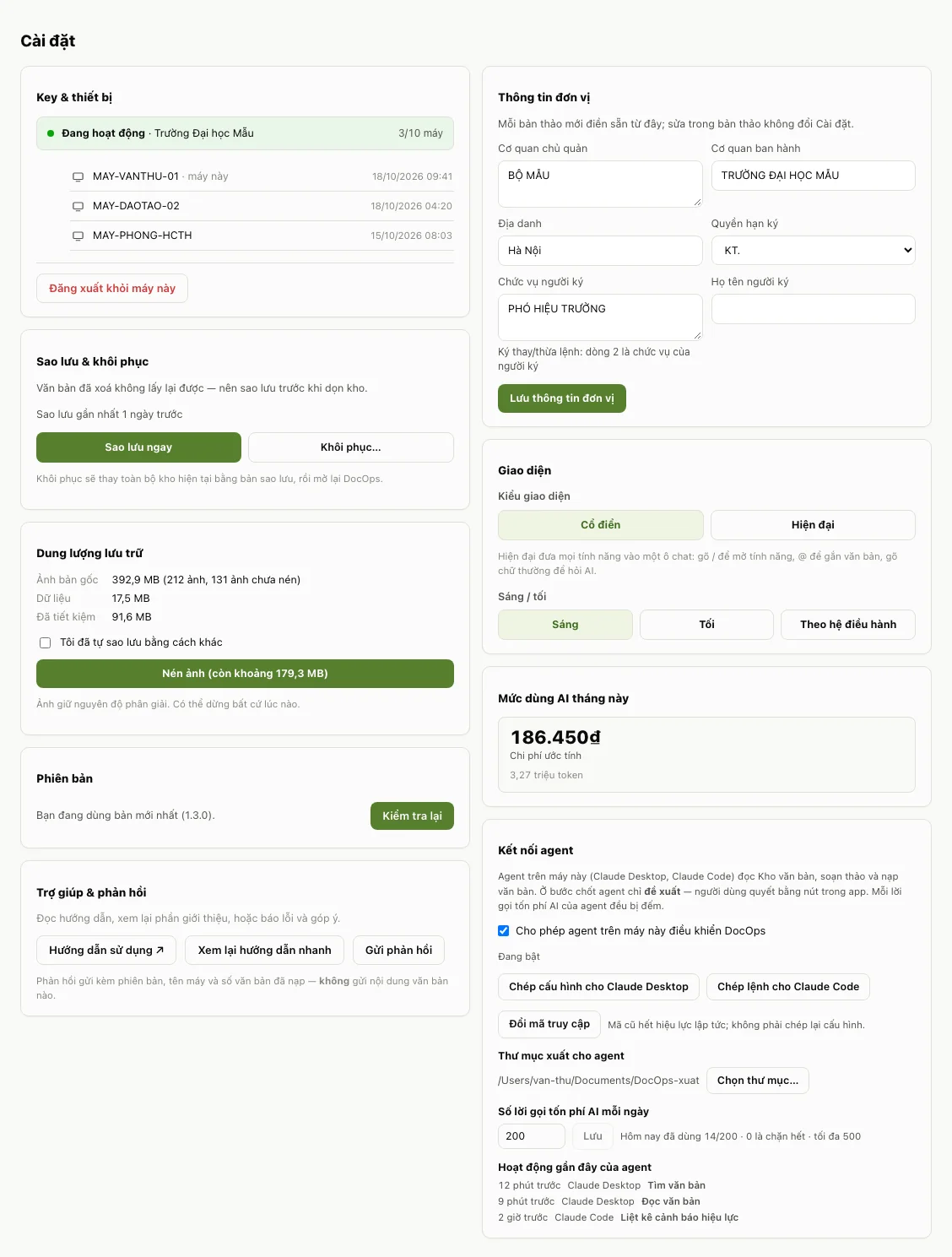
The Settings screen. The app interface is in Vietnamese. Institution details
Fill in Cơ quan chủ quản (Parent body), Cơ quan ban hành (Issuing body), Địa danh (Place), Quyền hạn ký (Signing authority), Chức vụ người ký (Signer's title) and Họ tên người ký (Signer's full name), then click Lưu thông tin đơn vị (Save institution details). Every new draft is pre-filled from here; changes made inside a draft do not change Settings.
AI usage this month
The card shows the estimated cost for your institution's key this month, with the total token count. It is the quickest place to see how much the billed work has used.
Appearance
- Kiểu giao diện (Layout): Cổ điển (Classic) or Hiện đại (Modern).
- Sáng / tối (Light / dark): Sáng (Light), Tối (Dark), or Theo hệ điều hành (Follow the system).
A click applies it at once, with nothing to save. These choices are stored separately on each computer.
Version and updates
- On the Phiên bản (Version) card, click Kiểm tra cập nhật (Check for updates).
- If there is a new version, click Tải và cài (Download and install) and wait for the download.
- Click Khởi động lại để cài (Restart to install). DocOps closes, installs the new version and reopens.
Drafts save themselves after every change; there is no save button. Before step 3, wait until the line next to the Drafting title reads "nháp đã lưu · hh:mm" (draft saved · time).
Help and feedback
- Hướng dẫn sử dụng ↗ (User guide) opens this page in your browser.
- Xem lại hướng dẫn nhanh (Replay the quick tour) runs the 8-step tour again.
- Gửi phản hồi (Send feedback): report a bug, make a suggestion or ask a question of the DocOps administrator. The dialog shows the computer details that go with it beforehand (version, operating system, computer name, machine code, the screen on view, the number of documents ingested); no document text is sent. After sending, note the feedback code for any follow-up.
Key and devices
The card shows whether the key is active or locked, the institution name and how many computers use the key. The Đăng xuất khỏi máy này (Sign out of this computer) button deletes the whole document library, drafts, conversations and images on this computer, then reopens DocOps at the activation screen. You confirm by typing exactly
XOÁ KHO.Signing out deletes dataSigning out cannot be undone. Click Sao lưu ngay trước khi xoá (Back up now before deleting) if you still need the data. A computer that has signed out still takes a place on the key until the administrator revokes it.
Backup and restore
The document library lives only on this computer. A backup is one
.docopsbakfile holding the whole library: documents, page images, drafts and conversations. Back up before deleting documents, replacing a file, compressing images, signing out or moving to another computer, and once a week as a routine.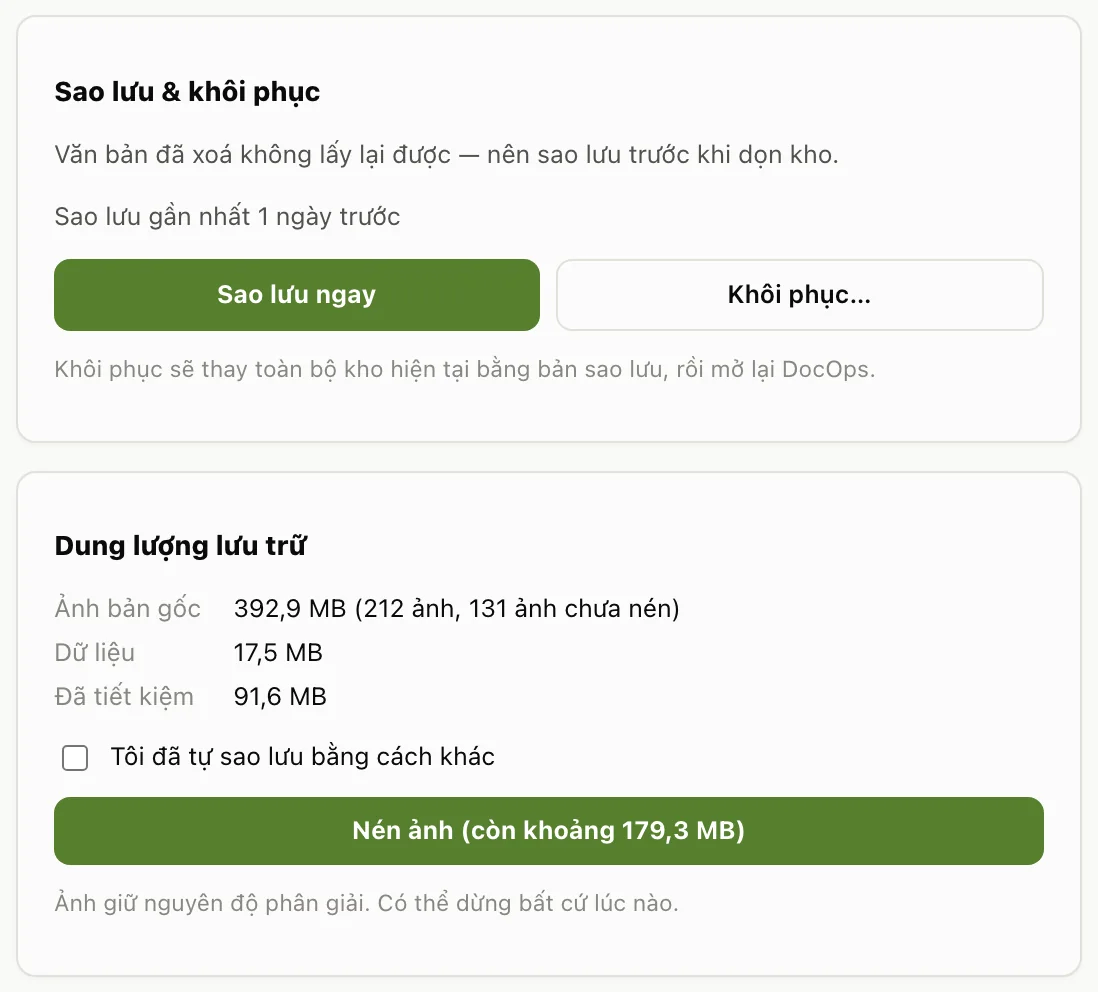
Backup, restore and image compression sit in the left column of Settings. The app interface is in Vietnamese. Backing up
- Open Cài đặt → Sao lưu & khôi phục (Settings → Backup and restore) and click Sao lưu ngay (Back up now).
- Choose where to save the file; the suggested name carries the date, for example
docops-2026-10-17.docopsbak. Save it to an external drive or your institution's network drive, not only on this computer. - DocOps reports "Đã sao lưu N văn bản và M ảnh vào …" (Backed up N documents and M images to …).
If this computer has never been backed up, or has gone 7 days without a backup, DocOps shows a reminder strip at the top with a Sao lưu ngay button; click × on the strip to silence the reminder for 7 days.
Restoring
- On the Sao lưu & khôi phục card, click Khôi phục… (Restore) and pick a
.docopsbakfile. - DocOps replaces the whole current library with the backup, then reopens.
Restoring replaces the entire current library, including documents ingested after that backup was made. If you need to keep the current library, back it up first. A backup made with a newer DocOps version cannot be opened by an older one: update DocOps before restoring.
Compressing images
The Dung lượng lưu trữ (Storage) card shows how much space the original images and the data take, and how many images are not compressed yet.
- Click Nén ảnh (còn khoảng …) (Compress images, down to about …). Images keep their resolution.
- To stop, click Dừng (Stop); the image being compressed finishes, then it stops.
If there has been no backup in the last 24 hours, DocOps asks you to back up first, or to tick Tôi đã tự sao lưu bằng cách khác (I have backed up another way). Compressing runs on your computer and uses no billed AI.
Connecting an agent
Connecting an agent lets an AI assistant running on this same computer, such as Claude Desktop or Claude Code, use DocOps on your behalf: search and read the document library, write and export drafts, ingest documents. The connection is off by default.
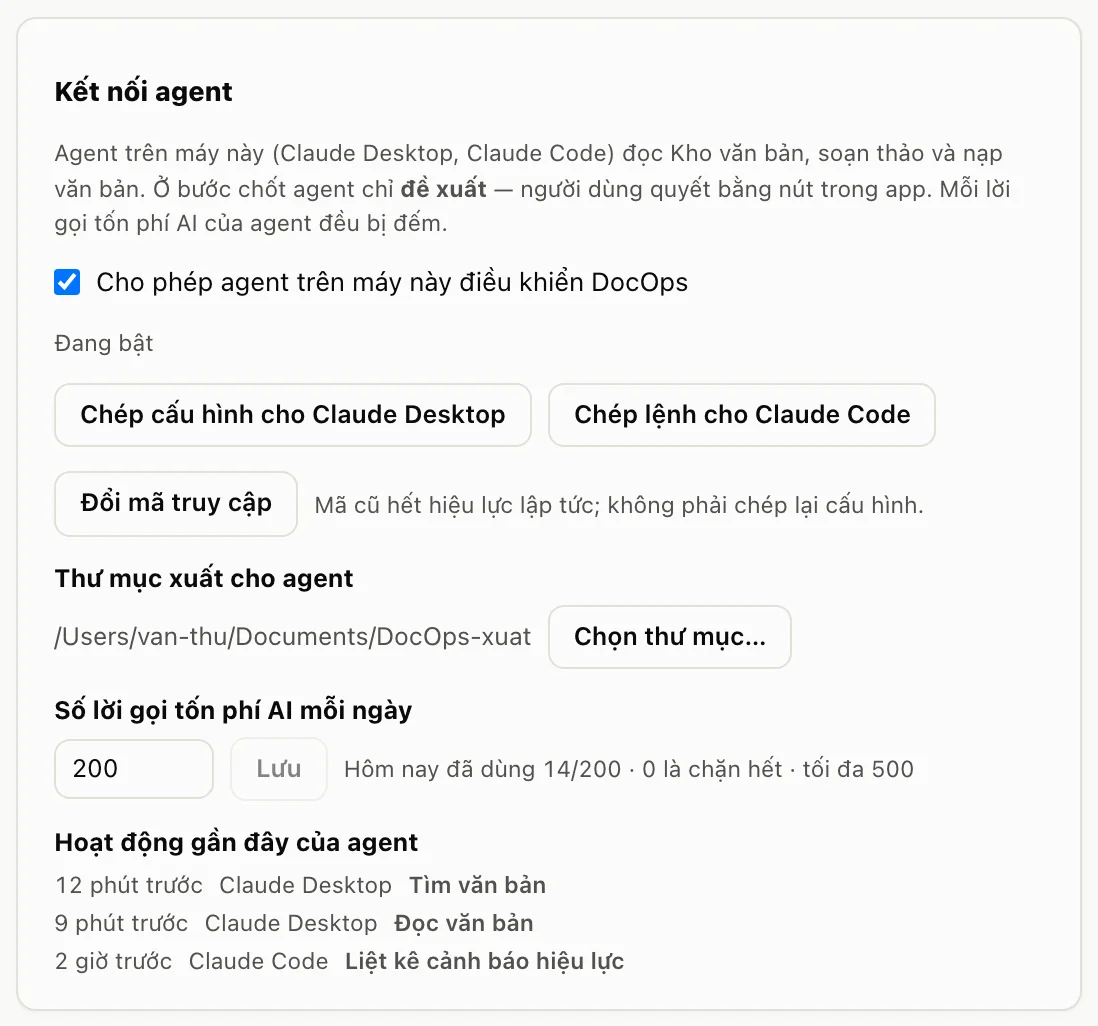
The Kết nối agent card in Settings. The app interface is in Vietnamese. - Open Cài đặt → Kết nối agent (Settings → Connecting an agent) and switch on Cho phép agent trên máy này điều khiển DocOps (Allow an agent on this computer to control DocOps). The status line changes to "Đang bật" (On).
- Claude Desktop: click Chép cấu hình cho Claude Desktop (Copy the configuration for Claude Desktop), open Claude Desktop's
claude_desktop_config.jsonfile and paste it in, then restart Claude Desktop. If the file is empty, paste the whole block; if it already has anmcpServerssection, copy only thedocopspart into that section. - Claude Code: click Chép lệnh cho Claude Code (Copy the command for Claude Code) and paste it into a terminal.
- For the agent to export Word or PDF: on the Thư mục xuất cho agent (Export folder for the agent) line, click Chọn thư mục… (Choose folder).
- Set Số lời gọi tốn phí AI mỗi ngày (Billed AI calls per day; 0 blocks them all, 500 at most) and click Lưu (Save).
What an agent can and cannot do
An agent can: search and read documents, view relations and validity on a given date, view the work waiting for confirmation, create and read drafts, import existing text as a draft, ask the AI to write a draft, export drafts to the chosen folder, ingest PDF files, and ask the assistant about the library.
An agent cannot: confirm at a confirmation step (it only proposes; the proposal appears on the card in the confirmation tray and you decide with the buttons in the app), delete documents, replace files, back up or restore, sign out, update the app, send feedback, change institution details, switch the connection on itself, or change its own access code or raise its own limit.
Billed AI useWhen an agent ingests documents, asks the AI to write a draft or asks the assistant, it is billed to your institution's key and counted against the daily limit. The card lists the agent's recent activity. Click Đổi mã truy cập (Change access code) if you suspect the code has leaked: the old code stops working at once, and you do not need to copy the configuration again.
Frequently asked questions
The questions that come up most when starting with DocOps: where the data is, what is billed, a forgotten key, moving computer, and losing the connection to the server.
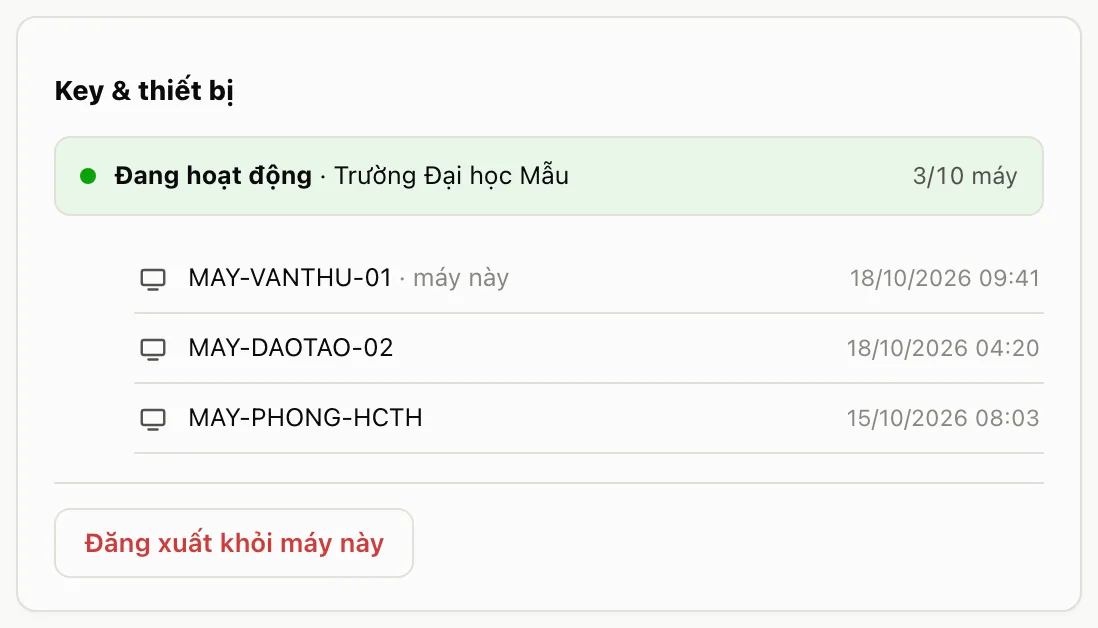
The Key & thiết bị card shows whether the key is active and how many computers use it. The app interface is in Vietnamese. Where is my data?
The document library (documents, page images, drafts, conversations) lives on this computer, in DocOps's data folder:
~/Library/Application Support/DocOpson macOS,%APPDATA%\DocOpson Windows. The DocOps server only handles the AI part and keeps no content after returning the result. Details on the AI transparency and data page.Why are some things billed and others not?
Anything that calls the AI is charged in tokens to your institution's key: reading the text of scans, extracting details and relations at ingest, asking the AI, Viết (Write a draft), Nhờ AI trình bày lại (Ask the AI to lay it out again), Đọc lại bằng OCR (Re-read with OCR), Chạy lại xử lý (Run processing again), Nạp lại quan hệ (Reload relations) and Thay tệp (Replace file). Anything that runs on your computer is free: search, filtering the library, the graph and impact radius, exporting Word or PDF, backups, image compression, and Đọc lại chữ (miễn phí). See the total cost under Cài đặt → Mức dùng AI tháng này (Settings → AI usage this month).
What if I forget the key?
A computer that is already activated keeps working; you do not need to enter the key again. To activate another computer without the key: on the activation screen, click Gửi yêu cầu tới quản trị (Send a request to the administrator) and choose the reason Mất key (Lost key). If a red strip at the top says the server no longer accepts this device, click Xin cấp lại key (Request a new key); when you have the new key, click Nhập key mới (Enter new key). The data on the computer is kept.
How do I move to another computer?
- On the old computer: Cài đặt → Sao lưu & khôi phục → Sao lưu ngay (Settings → Backup and restore → Back up now), then copy the
.docopsbakfile to the new computer. - On the new computer: install DocOps and activate it with your institution's key. If the key has used up its computers, send a request with the reason Đổi máy (Changing computer).
- On the new computer: Cài đặt → Sao lưu & khôi phục → Khôi phục… (Settings → Backup and restore → Restore) and pick the copied file.
- If the old computer will not be used any more: Đăng xuất khỏi máy này (Sign out of this computer) to delete the data on it, and ask the administrator to revoke it so its place on the key is freed.
The layout and the light or dark setting are stored separately on each computer and do not travel with the backup; choose them again on the new computer.
The app says "Không kết nối được máy chủ DocOps"?
That strip means "Cannot reach the DocOps server". While it shows, text reading, analysis, asking the AI and AI drafting do not run; search, reading documents and editing drafts on your computer still work. Check the network connection, then click Thử lại (Try again) on the strip. If it still fails, tell your institution's administrator, or send a screenshot through the Contact page. Feedback cannot be sent from the app while the connection is down, because it also goes through the DocOps server; once the connection is back, use Trợ giúp → Gửi phản hồi (Help → Send feedback).
- On the old computer: Cài đặt → Sao lưu & khôi phục → Sao lưu ngay (Settings → Backup and restore → Back up now), then copy the